

Skip to the content
Teltech_Logo_WEB
  • Contact
  • Support
  • Request Callback
Phone-square-alt User-circle
0

Cart

0
Subtotal: $0.00

No products in the cart.

  • ABOUT
        • Blog
        • Recent post

          Schools Are Investing in Better Technology Experiences

          Why Schools Are Investing in Better Technology Experiences

          02/09/2026 0
        • Conferences
        • conference-menu-banner
        • Testimonials
        • Google star 1Google star 2Google star 3Google star 4Google star 5.0.4
          14 reviews
          Google
        • Contact us
        • Request a Callback
        • Support
        • Support Portal Login
  • EDUCATION
        • VoIP for Education
        • Yard Duty Phones
        • Excursion Phones
        • Interactive Screens
        • Emergency Devices
        • School Safety
        • TrakVisit
        • Music/Messages On Hold
        • Mobiles for kids
        • education-mega
  • DATA & NETWORKS
        • Internet Solutions
          • nbn™ for Business
          • FTTP Fibre-to-the-Premise
          • Enterprise Wireless
        • Telstra Intelligent Network
          • SIP Connect
          • Telstra Internet Direct
          • Telstra Global WAN
        • Routers & Gateways
          • Cisco Meraki Solutions
          • SonicWall
          • Draytek Routers
          • Peplink Routers
          • Netgear Routers & Gateways
        • data-network-mega
  • MOBILITY
        • Mobiles
          • Mobile Accessories
          • Mobile Broadband
          • 5G Mobiles
          • Apple iPhones
          • Samsung Phones
          • Telstra Blue Tick Phones
        • Telstra Business Mobile Plans
        • Telstra Business Data Plans
        • Telstra International Calling Pack
        • Telstra International Day Pass
        • Telstra Upgrade and Protect
        • Telstra Adaptive Mobility
        • Telstra IoT Plans
        • Tablets
        • CEL-FI Signal Booster
        • antenna
  • IT & CLOUD
        • Managed Services
        • managed-services-mega
        • Cloud & Managed Solutions
          • 1111 Systems
          • AWS
          • Telstra Dedicated Hosting
        • Productivity
          • Microsoft 365
          • Microsoft Teams
          • Microsoft Sharepoint
          • Microsoft Entra ID
        • Kaseya Datto Partner Solutions
          • Datto
          • BCDR Business Continuity & Disaster Recovery
          • Datto Endpoint Backup
          • INKY: Email Security Solutions
  • TELEPHONES & SECURITY
        • Mitel Phone Solutions
          • Mitel Voice Assist
          • Mitel MiCollab
          • Mitel Revolution
          • Mitel On-Prem vs Cloud PBX
        • Avaya IP Phones
        • NEC
        • EnGenius
        • Mobile Gateways
        • Security
          • Cyber Awareness
          • Kaseya Datto Modules
          • ESET
          • Usecure
        • Accessories
          • Aristel
          • Eaton
          • Chase Power
          • Cordless Phones
          • Headsets, Earphones and Headphones
  • SHOP
        • Accessories
        • Cordless Phones
        • Mobile Accessories
        • Mobile Broadband
        • Mobile Gateways
        • Mobiles
        • NEC Systems
        • Routers
        • Security Hardware
        • Tablets & Laptops
        • UPS
        • teltech-shop (1)
Avaya J139 IP Phone - Front
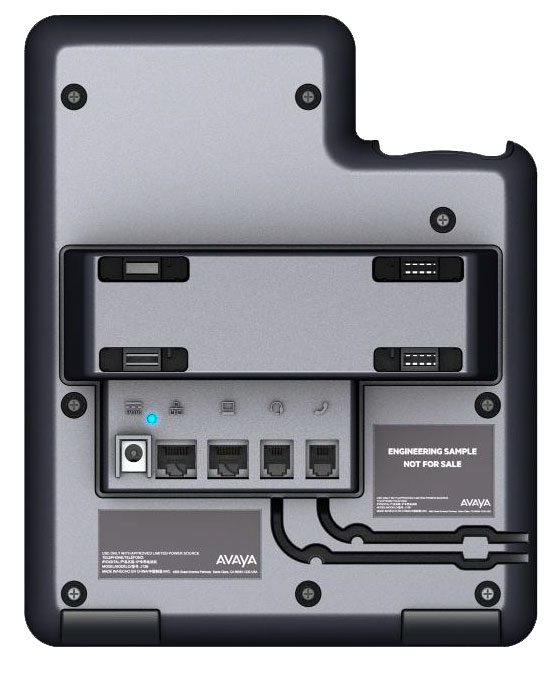
Avaya J139 IP Phone - Back
Avaya J139 IP Phone - Front

AVAYA J139 IP Phone Front
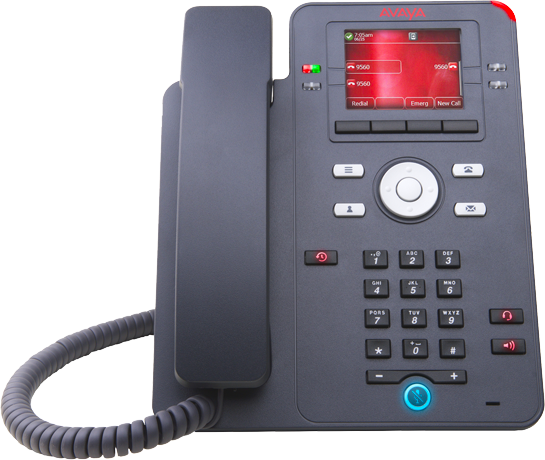
AVAYA J139 IP Phone Front
Main MenuNavigation ClusterContactsVoicemailRecentsHeadsetSpeakerHandsetVolumeMute ButtonBeacon LEDPhone DisplayLine KeysLine KeysSoft KeysPhone KeyDial PadMic

Main Menu

Displays the list of options, such as Features, Applications, Settings, Network information, Administration, and About.

Navigation Cluster

Used to navigate on the Phone screen.

  • Up and Down arrow keys: to scroll up and down.
  • Right and Left arrow keys: to move the cursor in the text input field, and toggle values in the selection fields.
  • OK button: to select the action assigned to the first soft key.

Contacts

Displays the entries in your Contacts list.

Voicemail

Used to dial the configured voice mail number to receive a voice message.

Recents

Displays call history list.

Headset

Used to toggle your call from the speaker to headset.

Speaker

Used to turn on the speaker.

Handset

Used to receive and make calls.

Volume

Used to adjust the volume of a handset, a speaker, or a ringtone.

  • (+): To increase the volume.
  • (-): To decrease the volume.

Mute Button

Used to mute and unmute the outgoing audio.

Beacon LED

Provides alerts for incoming calls and voice mail.

Phone Display

Displays two areas:

  • Top Bar: It is always visible, displays communication and device status, and time and date.
  • Application area displays the following:
    • Application header: It displays the context-specific application title and one or more subtitles. Depending on the appearance type and the call state, the header displays details of the call.
    • Application content area: it displays menus, lists, pop-up windows, images, or other application content.
    • Soft-key labels area: it displays labels with information about the state of the Soft Key buttons.

Line Keys

Used to select the corresponding rows. Each line key has a LED that displays the following visual alerts:

  • Red light: disabled features.
  • Green light: incoming call and enabled features.
  • Red and green light: the phone is off-hook.

Line Keys

Used to select the corresponding rows. Each line key has a LED that displays the following visual alerts:

  • Red light: disabled features.
  • Green light: incoming call and enabled features.
  • Red and green light: the phone is off-hook.

Soft Keys

Used to select the corresponding label of context-specific actions.

Phone Key

Displays the Phone screen.

Dial Pad

Dial Pad to enter numbers.

Mic

Microphone for Speaker phone function.

Avaya J139 IP Phone - Back

AVAYA J139 IP Phone Back

AVAYA J139 IP Phone Back
5V DC JackNetwork PortPC PortHeadset JackHandset Jack

5V DC Jack

To connect the power supply.

Network Port

To connect the Ethernet cable.

PC Port

To connect the computer.

Note: PC port is disabled when a Wi-Fi network is used.

Headset Jack

To connect the headset.

Handset Jack

To connect the handset.

Linkedin Facebook-f Youtube Instagram Tiktok

Quick Links

  • Latest Apple iPhones
  • Latest Samsung Phones
  • Support
  • General Enquiries
  • Request a Callback

Support Links

  • PABX Support
  • IT Support
  • Mobile Support
  • Kiosk Support
  • CRM Support

Contact

  • 1300 TELTECH (835 832)
  • P: (03) 9781 7000
  • F: (03) 9781 7077
  • enquiries@teltech.net.au
  • 32 Hartnett Dr, Seaford VIC 3198
  • Care Agreement Terms & Conditions
  • Online Terms & Conditions
  • Privacy Policy
  • Shipping Policy
  • Terms and Conditions of Trade

Copyright © 2026 Teltech